How to Manage DNS Records in Plesk
This guide explains how to view, add, and modify DNS records for your domain in Plesk.
How to View DNS Records
To view the resource records in a DNS zone:
-
Log in to your Plesk Panel.
-
Go to Websites & Domains.
-
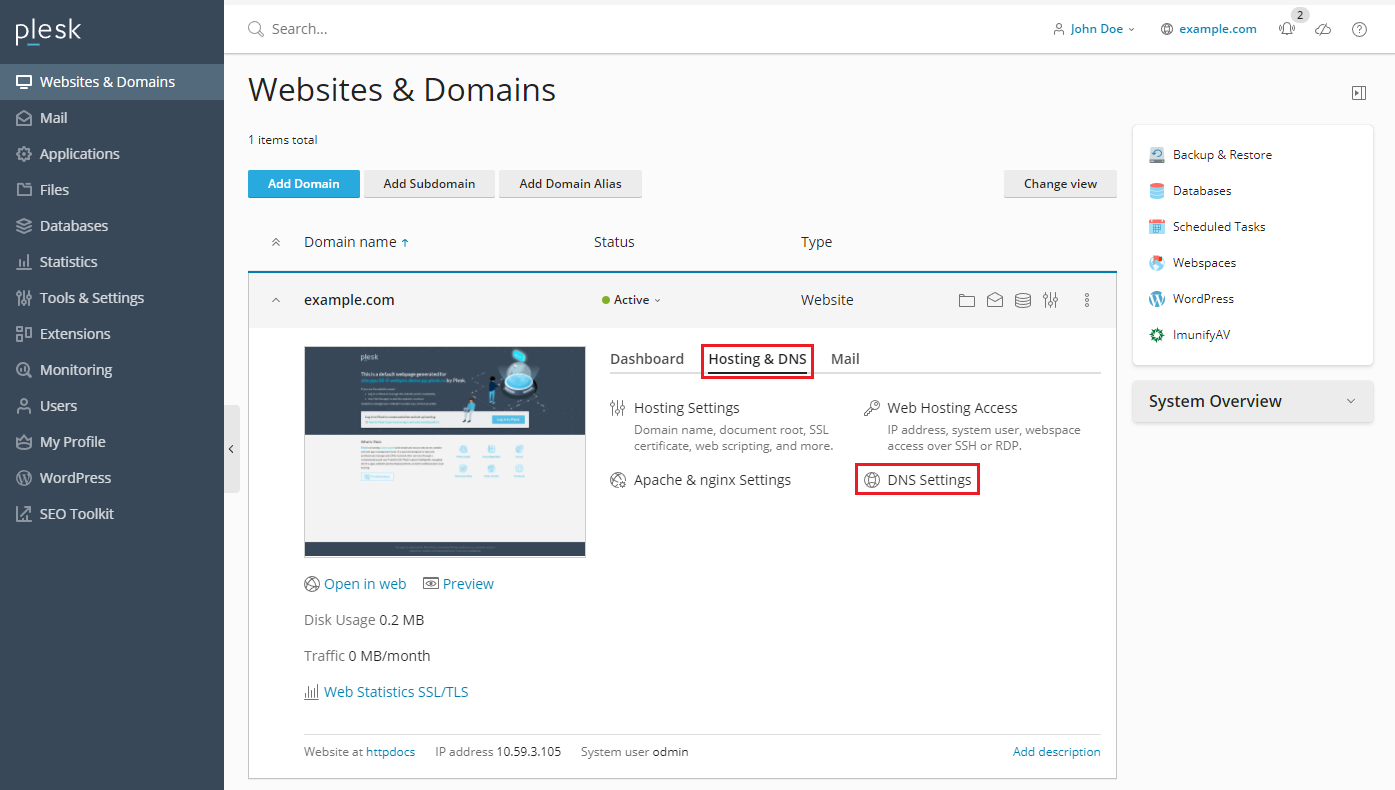
Click on DNS Settings.
Here you will see the list of all existing DNS records for the domain.
To view the resource records in a DNS zone of a domain, go to Websites
& Domains > DNS Settings.
How to Add a New DNS Record
To add a resource record to the DNS zone:
-
Log in to Plesk.
-
Go to Websites & Domains.
-
Click on DNS Settings.
-
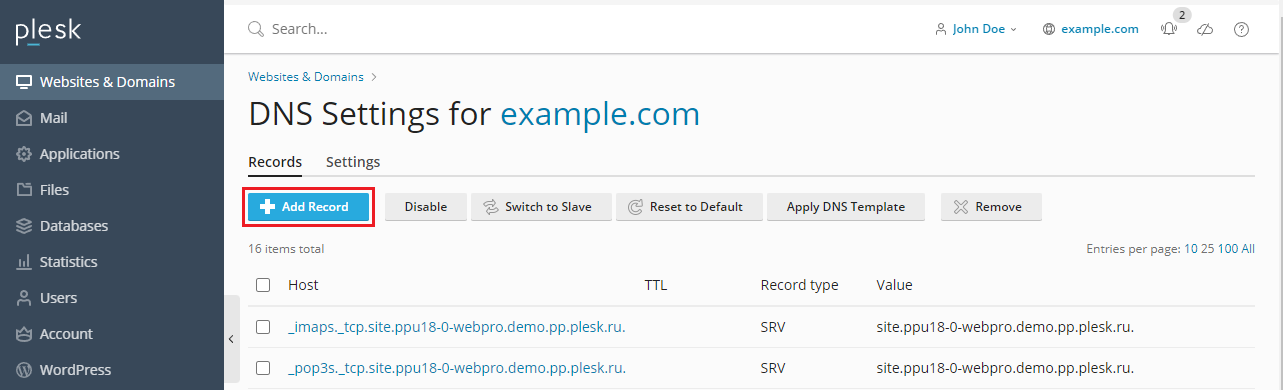
Click on Add Record.
-
Select the record type (A, CNAME, MX, TXT, etc.).
-
Enter the required details.
-
Click OK to save the record.
How to Modify an Existing DNS Record
To edit a DNS record:
-
Go to Websites & Domains.
-
Click on DNS Settings.
-
Click on the DNS record you wish to modify.
-
Update the required fields.
-
Click OK to save the changes.
Important Notes
-
DNS changes may take time to propagate globally (usually up to 24–48 hours).
-
Ensure the values entered are correct before saving changes.
If you need further assistance, please contact our support team.